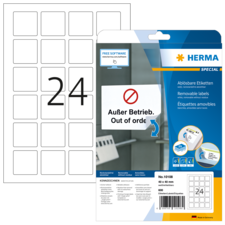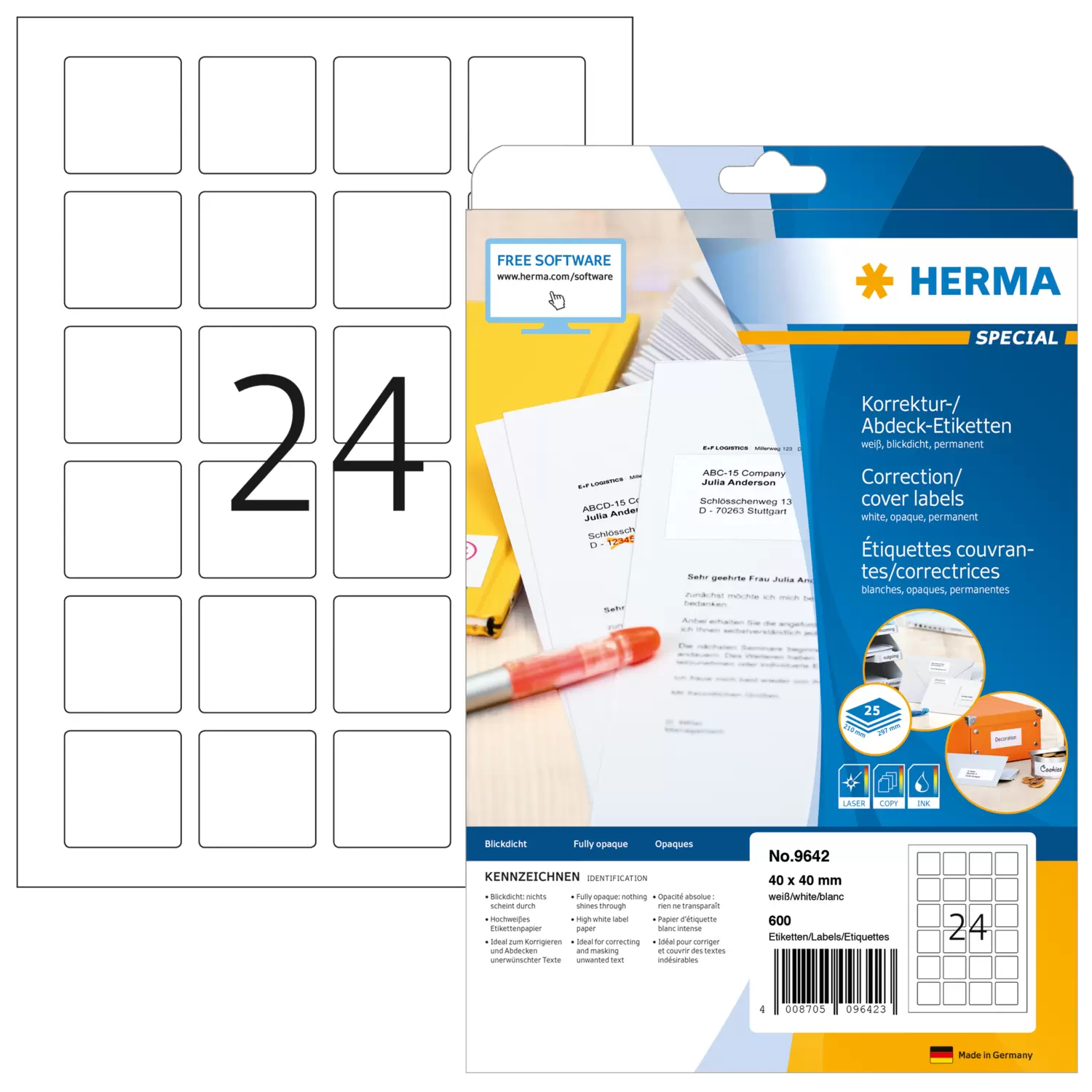
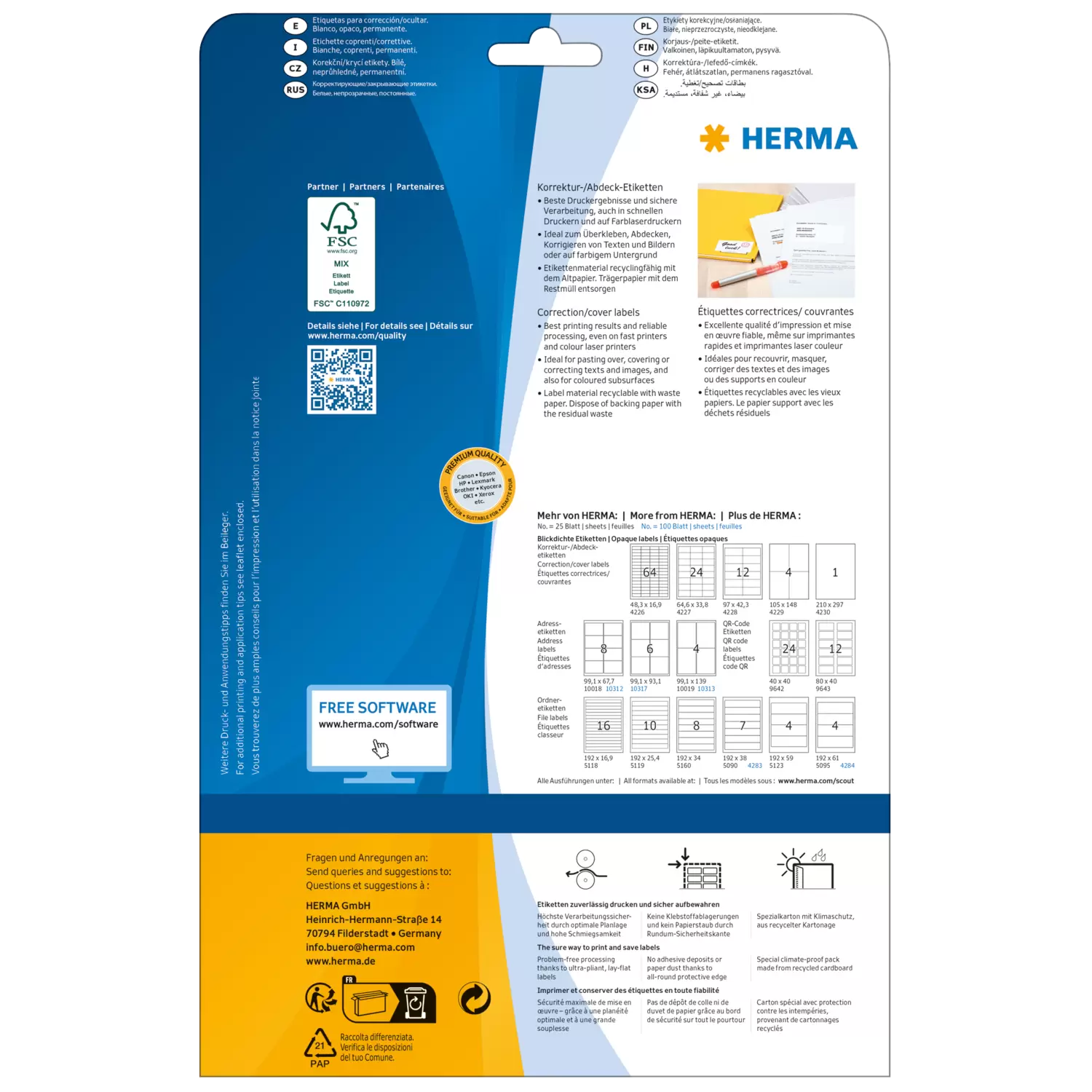
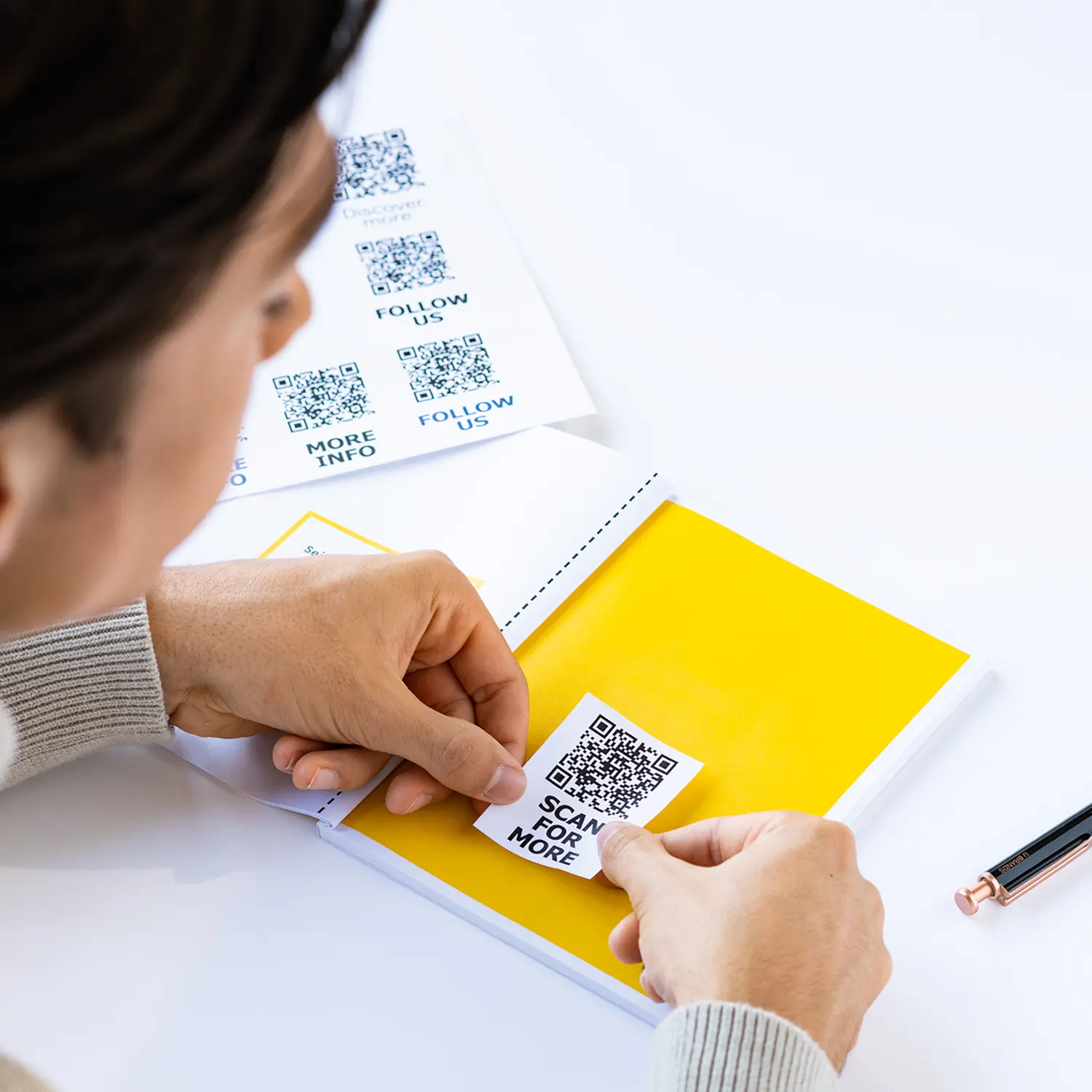
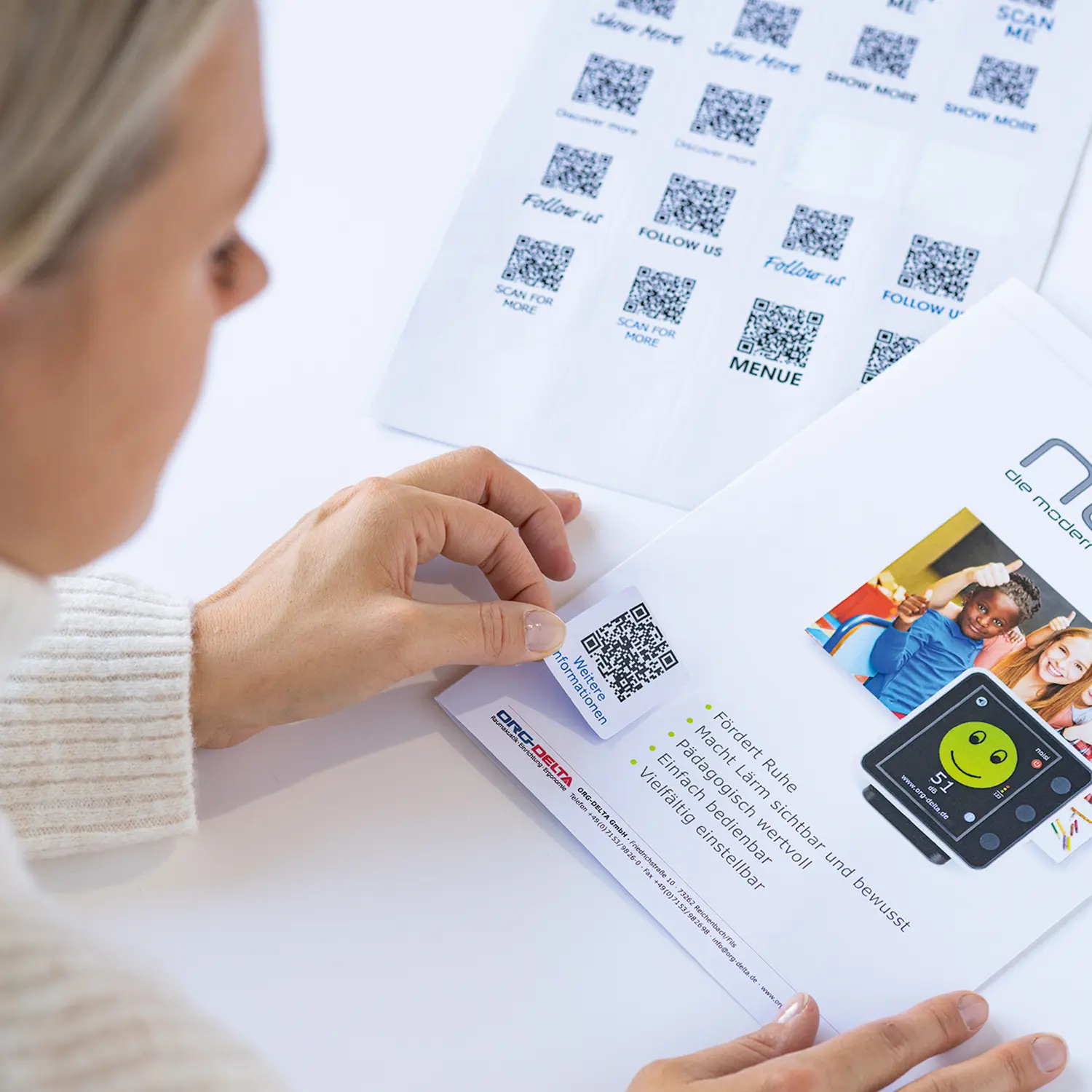
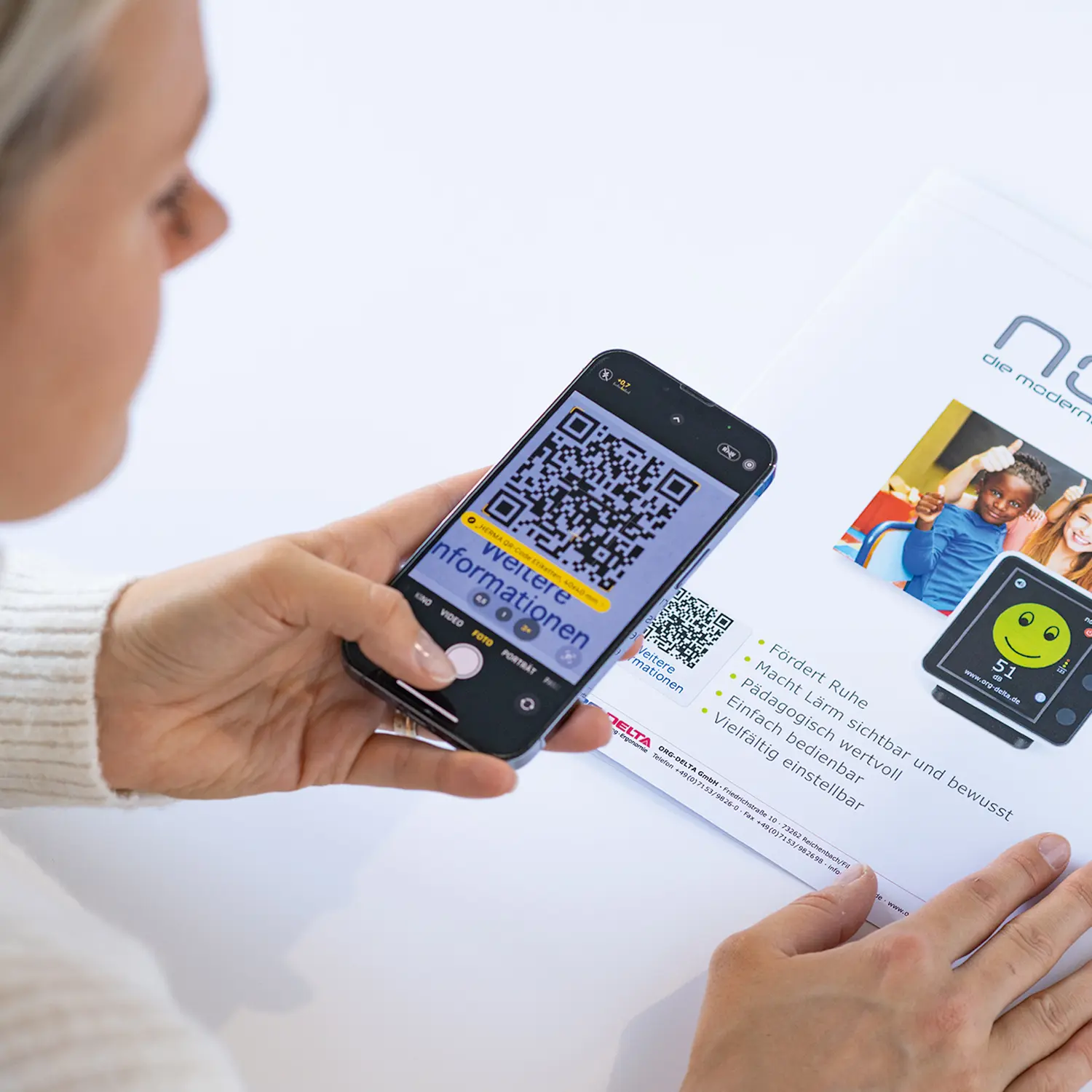
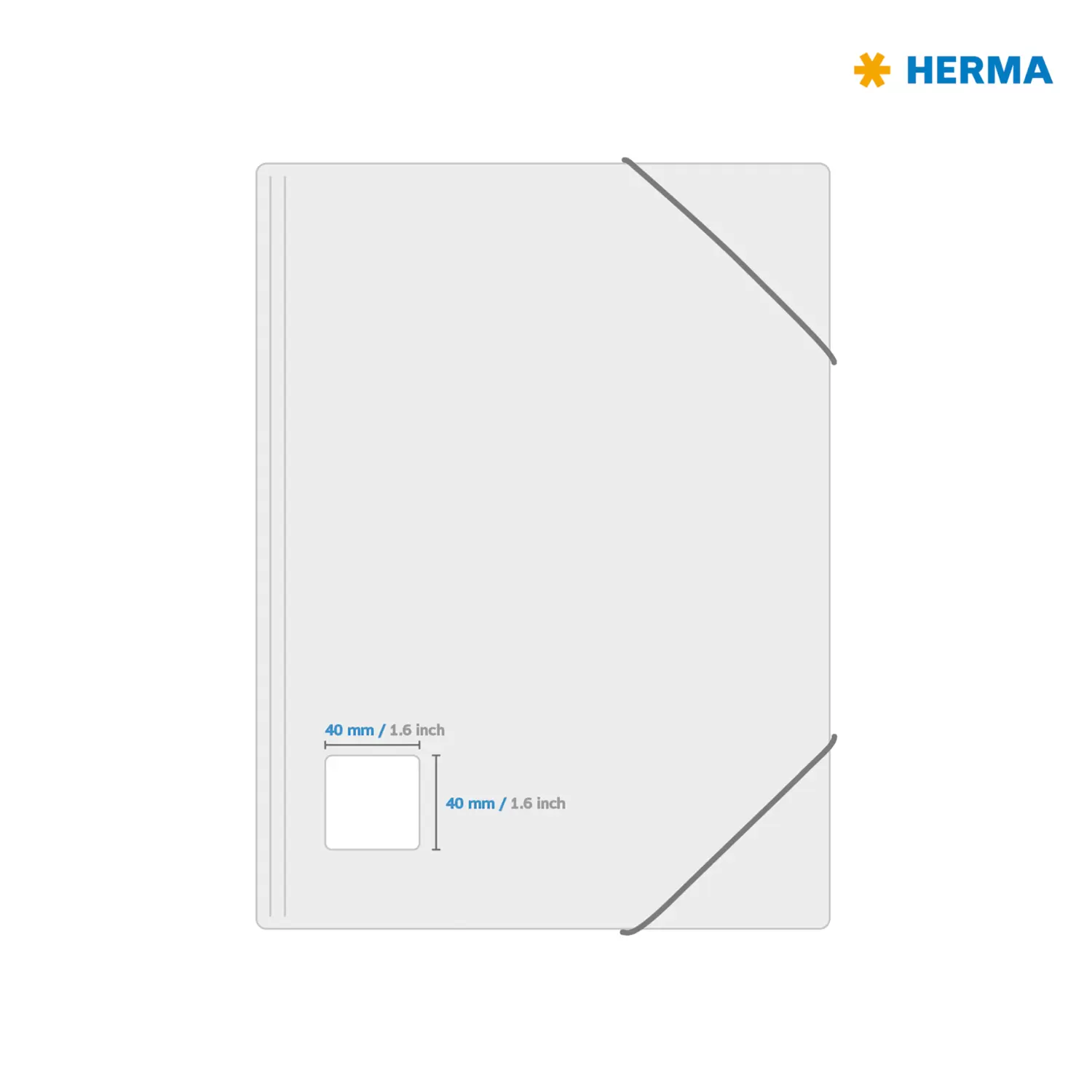
QR code labels A4, 40 x 40 mm, white, opaque, permanent adhesion
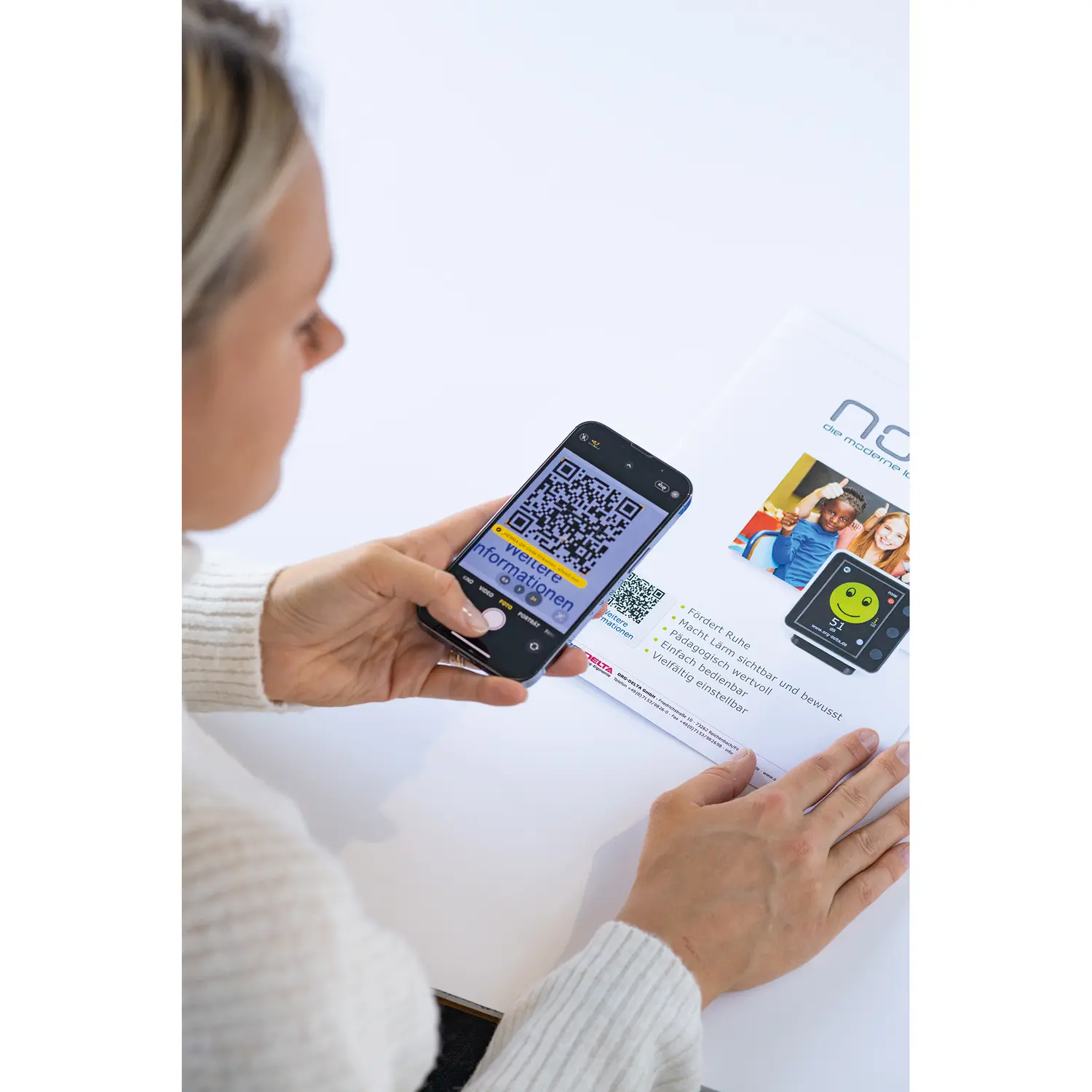
- Fully opaque, easily read by scanners
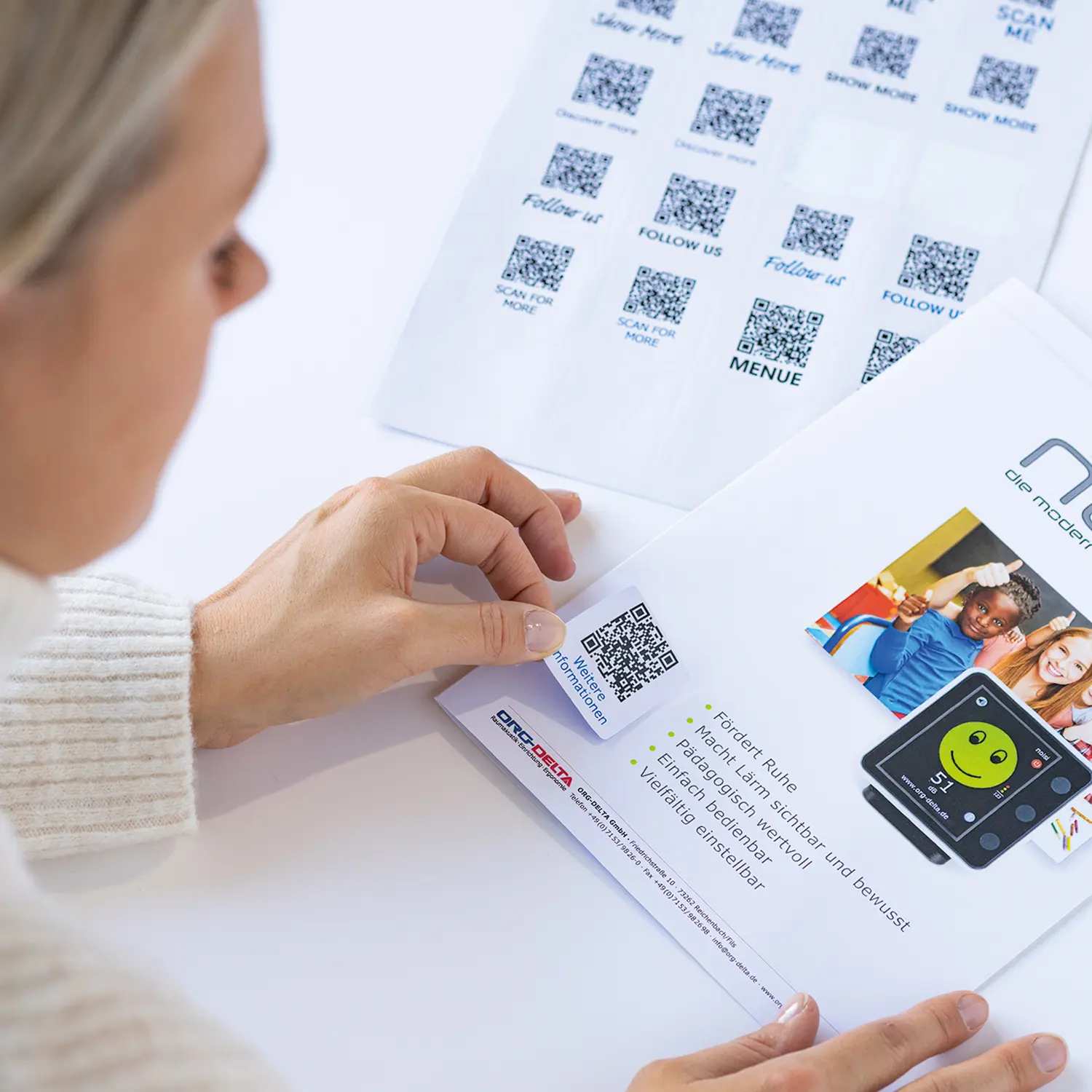
- Ideal for mobile tagging of URLs, telephone numbers, addresses and text, can be affixed to product packages and advertising materials
- Suitable for inkjet printers, laser printers and copiers, perfect printing results in black-and-white or colour
 Design now
Order from partner shop

Additional Information
| Product/environmental certificate | Download now |
General processing instructions
To the overview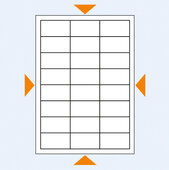
Punch template
DownloadProperties
| Ref. no. | 9642 |
| Content | 600 labels / 25 sheets |
| Format | 40 x 40 mm |
| Colour | white |
| Adhesive characteristics | permanent adhesion |
| Printer type | Laser, Copy, Ink |
| Shape of corners | rounded |
| Material | paper, matt |
| Additional features | opaque |
| EAN | 4008705096423 |
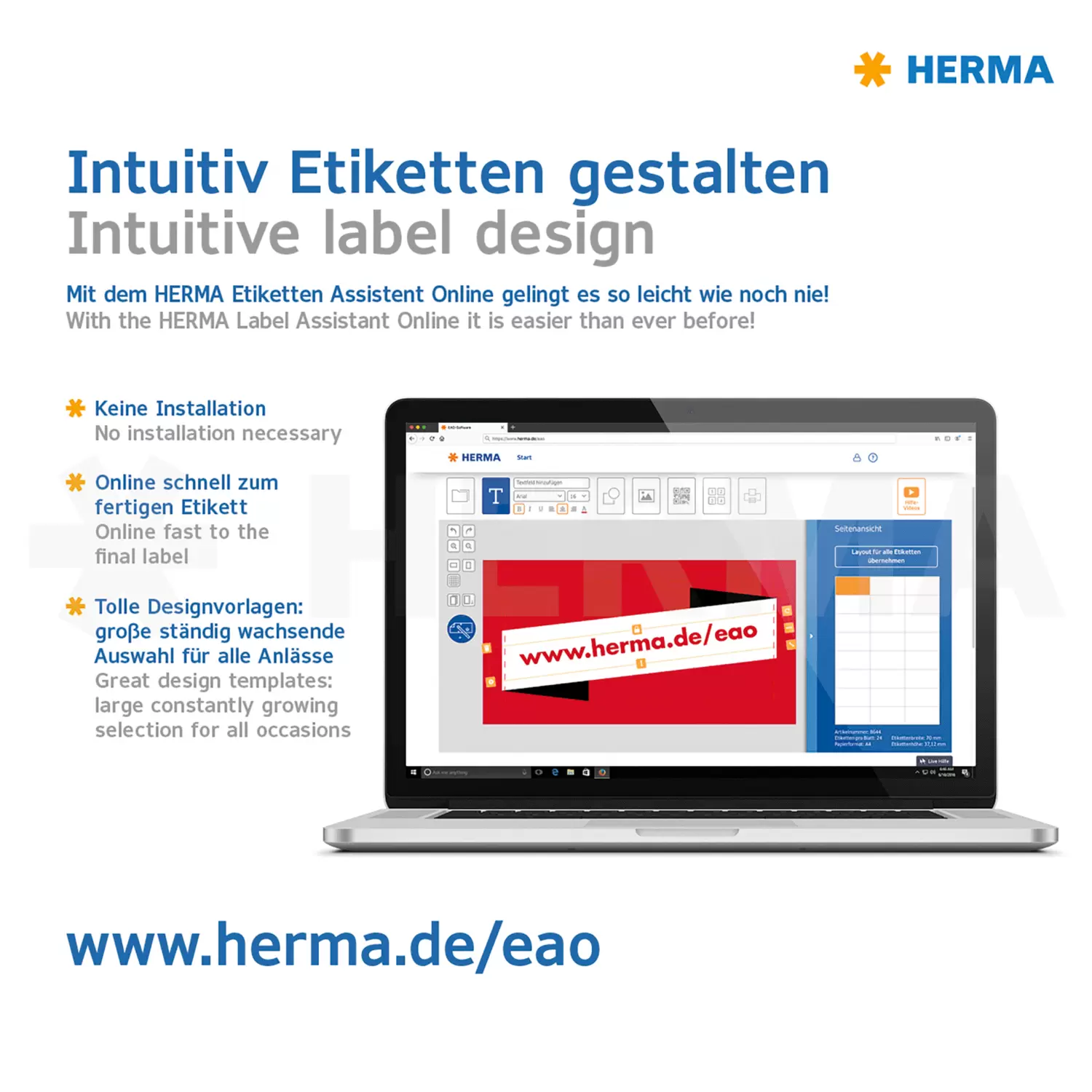
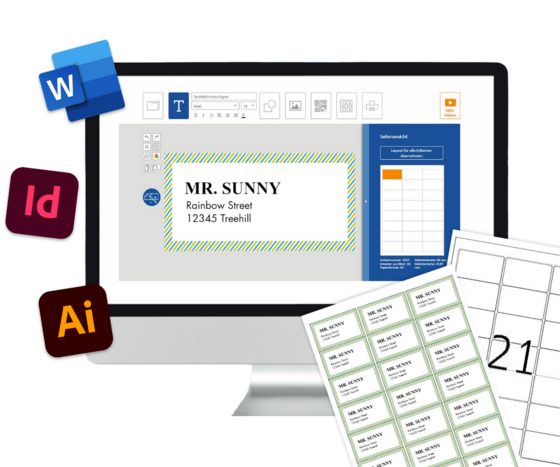
Would you like to design labels right on your screen without installing software? Then what you need is HERMA LabelAssistant online (EAO). Choose from more than 100 different templates. Or design your labels from scratch, with your own images, logos and graphics. Integrate Excel spreadsheets for mail merge. Or use EAO to generate barcodes and serial numbers. This is the state of the art in label design.

Would you like to design your labels with Word? Then download a template to go with whatever HERMA label you’ve chosen. There’s no need to take measurements or set up margins. And you can work in your familiar program environment, with all of its functions. It couldn’t be any easier.

Do you use professional-quality software like Illustrator or InDesign? Here’s where you can get accurately dimensioned templates. All of your familiar functions will still be available, and you can place frames wherever you need them for text and images. You’ll also find the dimensions of a wide variety of label formats on A4 – the efficient way to make your own templates.